
Mission Statement
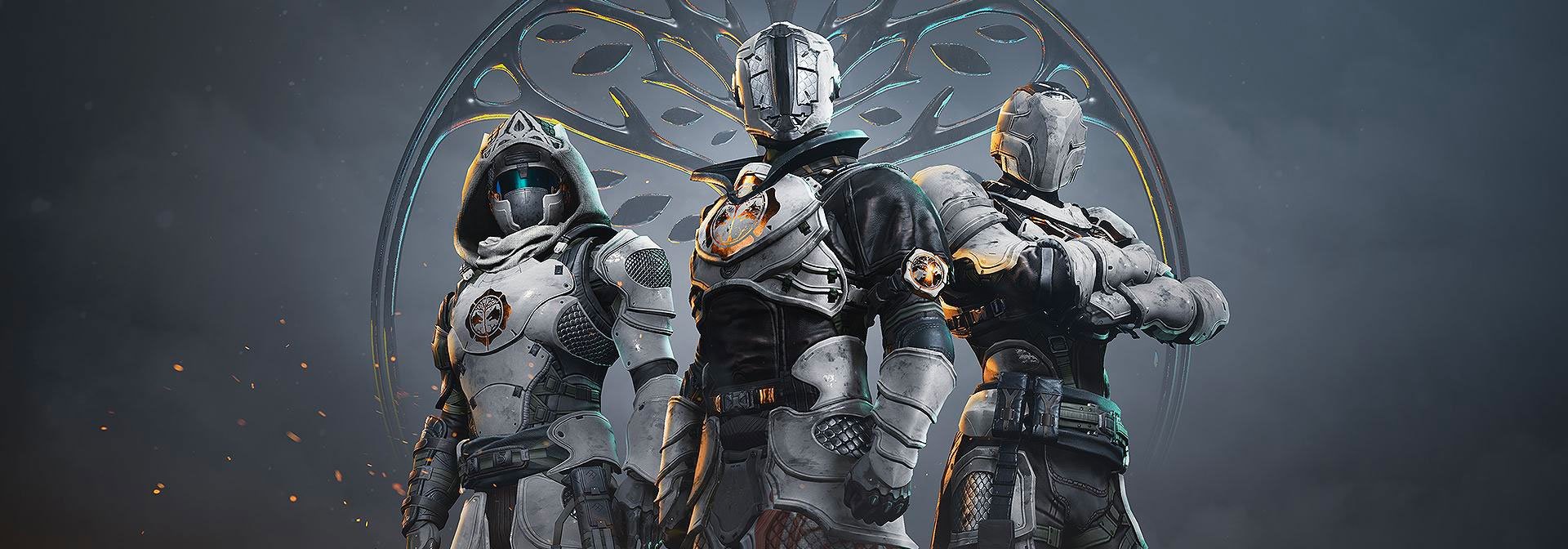
WTB Clan is a fortnite clan is only for people that are good at the game and get wins constantly. We do Clan meetups, squads and duos together. Be active at all time! DM for any more information!!
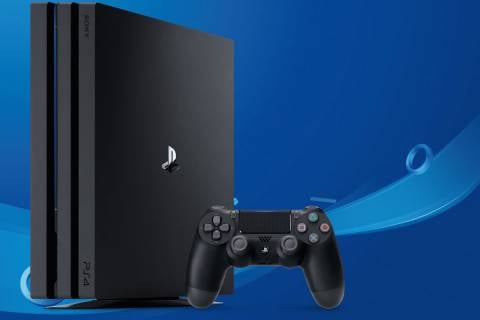
Console and PC
Looking FOR PC AND CONSOLE PLAYERS. MUST BE VERY GOOD IN PUBS. IM ALSO LOOKING FOR VIDEO EDITORS, AND PHOTO EDITORS!
Requirements:
• Console, and PC
• Age 13 and older
• No toxicity among others
• NAE
• Be a loyal member
• Be active every day and week (UNLESS there’s a excuse)
• Must be Competitive in PUBS
• You don’t have to be good in creative
Statistics
Creator


Clan Upvotes


Platforms Played



Applications
seoexpert
I think this is an informative post and it is very useful and knowledgeable. therefore, I would like to thank you for the efforts you have made in writing this article. แทงบอลเต็ง
seoexpert
thanks for this usefull article, waiting for this article like this again. Top 10 restaurants bangkok
Emma32
If you’re wondering about WTB, it’s worth asking Are Refinance Closing Costs Worth It in Virginia? Upfront fees can feel high, but if the long-term savings outweigh them, refinancing could be smart. Always calculate carefully and weigh options before committing to avoid surprises later.
wilsonramy
These outdated questions lead to customers failing their Fortinet FCP - FortiAnalyzer 7.4 Administrator exam. In contrast, we ensure our questions bank includes only precise and up-to-date questions, guaranteeing their presence in your actual exam. Our main priority is your success in the Fortinet FCP_FAZ_AD-7.4 exam, not profiting from selling obsolete exam questions in PDF or Online Practice Test.
Visit Now >>> https://www.dumpswrap.com/fortinet-dumps/fcp_faz_ad-7-4.html
llucklinn
https://ragdollhitgame.org stands out for its blend of chaotic fun, strategic depth, and accessibility.
anikethsol
What a fantastic blog! Along with being flawless, your writing has a strong sense of style. From the start to the finish, I was engrossed. Your incisive thoughts and useful expertise are absolutely amazing. The website is a pleasure to travel around thanks to its visually appealing layout and design, which are also highly user-friendly. I can't wait to read more wise posts from you and learn about new subjects on your amazing blog. Keep up the fantastic job!
I encourage you to read my most recent blog article if you share my curiosity about technical solutions.
Norton Antivirus and Security Suite are popular choices for protecting computers from various online threats. However, frequent popups and notifications from Norton can sometimes disrupt your workflow or gaming experience. This guide will provide you with detailed steps to disable Norton popups and notifications effectively, along with essential information about Norton antivirus software options and purchasing details.
[How to disable Norton Popups](https://www.callsupportteam.com/how-to-stop-norton-popups/)
Norton offers a range of products tailored to different security needs, including Norton 360, Norton Security Suite, and Norton Antivirus. These software packages provide comprehensive protection against viruses, malware, phishing attempts, and other online threats. Here's a brief overview:
-
Norton 360: Norton 360 is an all-in-one security solution that includes antivirus protection, VPN, password manager, cloud backup, and dark web monitoring.
-
Norton Security Suite: This suite is designed for comprehensive security across multiple devices, offering protection against viruses, spyware, ransomware, and phishing attacks.
-
Norton Antivirus: Norton Antivirus provides essential protection against viruses and malware, focusing on core antivirus features to keep your devices secure.
How to Stop Norton Popups and Notifications
Norton popups and notifications are intended to keep you informed about security updates, threats detected, and other important information. However, if you find them intrusive or distracting, follow these steps to disable them:
-
Open Norton Security: Launch the Norton application on your computer. You can usually find the Norton icon in the system tray or by searching for "Norton" in the Start menu.
-
Access Settings: Navigate to the settings or preferences section of Norton. This can typically be found under options like "Settings", "Advanced Settings", or "Preferences".
-
Disable Notifications: Look for options related to notifications or popups. You may find checkboxes or toggle switches that allow you to disable specific types of notifications. For instance, you can disable notifications about virus definition updates, security alerts, or backup reminders.
-
Customize Notification Settings: Some versions of Norton allow you to customize notification settings further. You can choose to receive notifications only for critical events or adjust the frequency of notifications.
-
Apply Changes: Once you've adjusted the notification settings according to your preferences, save or apply the changes. Norton may prompt you to confirm your settings before saving them.
-
Restart Your Computer: Sometimes, changes to notification settings require a restart to take effect fully. Restart your computer to ensure that Norton is no longer displaying popups or notifications.
Norton Antivirus Software Options and Pricing
-
Norton 360 Standard Price: Norton 360 is available in different versions such as Standard, Deluxe, and Premium. Prices vary depending on the features included and the number of devices covered. Check the Norton website or authorized retailers for current pricing details.
-
Purchase Norton Antivirus: You can purchase Norton antivirus software directly from the Norton website, authorized resellers, or online marketplaces. Look for special offers, discounts, or subscription plans that best suit your needs.
[norton antivirus software price](https://www.callsupportteam.com/buy-norton-360/)
-
Scheduled Scans: Set up scheduled scans to run when you're not actively using your computer to avoid interruptions during work or gaming sessions.
-
Quiet Mode: Some versions of Norton include a Quiet Mode feature that temporarily suppresses notifications and updates, allowing you to focus on tasks without interruptions.
-
Customer Support: If you encounter difficulties or have specific questions about managing Norton settings, consult Norton's customer support. They can provide guidance tailored to your version of Norton software.
Disabling Norton popups and notifications can enhance your computing experience by reducing distractions while maintaining robust security against online threats. By following the steps outlined in this guide and exploring the various Norton antivirus software options available, you can customize your security settings to suit your preferences and maximize your productivity. Remember to stay updated with the latest security patches and settings adjustments to ensure your devices remain protected effectively. For further assistance, Norton's customer support is always available to address any concerns or queries you may have.
HattieRandolph
Online baccarat, which website is good to apply for baccarat, which website is good here is the answer บาคาร่า เว็บไหนดี 2020 pantip
HattieRandolph
When I view an image montage that uses 20 different transition wipes, it draws importance far from the photos and viewers notice the transitions more compared to images.auto colorize video Transition wipes should appear seamless and unnoticed.









































seoexpert
This particular is usually apparently essential and moreover outstanding truth along with for sure fair-minded and moreover admittedly useful My business is looking to find in advance designed for this specific useful stuffs… pilarhoki daftar